
Modern devices rarely work alone. A phone connects to a laptop, a tablet connects to cloud storage, a browser remembers account data, and apps share permissions across profiles, devices, and services. One small setting can travel much farther than expected.
That is why even a simple action deserves attention. Before changing account, sync, or access settings on this website, users should understand which device, browser, or connected app might be affected by the same update. A single toggle can change notifications, saved data, backups, login access, or privacy behavior across an entire digital setup.
Small Changes Can Spread Across the Whole System
A setting may look local, but many modern services work through shared accounts. A change made on one phone can appear later on a laptop, browser, smart TV, or tablet. This is useful when everything works properly. It becomes confusing when one mistaken choice spreads across every connected place.
For example, turning off account sync may stop bookmarks, contacts, or passwords from updating. Changing notification settings in one app may affect alerts on several devices. Removing access from a connected service may break features that seemed unrelated at first.
The problem comes from hidden connections. Users often see one button, but behind it sits a wider system of cloud storage, app permissions, browser identity, device trust, and saved preferences. A small setting becomes a chain reaction.
Better control starts with one question: where else will this change appear?
Sync Errors Create Confusion Fast
Sync settings are convenient because they keep information consistent. Photos, files, contacts, passwords, bookmarks, notes, and app preferences can move smoothly between devices. The same convenience can make mistakes spread quickly.
A wrong sync choice can duplicate old contacts, remove recent files from view, mix personal and work data, restore outdated app preferences, or show the same error on every device. The user may think several devices have separate problems, while the real source is one shared setting.
Sync issues can feel especially strange because the result appears after a delay. A change made in the morning may seem harmless, then later affect another device. This delayed effect makes troubleshooting harder.
Permissions Can Make Apps Look Broken
Many app problems begin with permissions. Camera, microphone, location, storage, contacts, Bluetooth, and notification access all shape how apps behave. If one permission is turned off, the app may open normally but fail at the exact moment a feature is needed.
A photo app may lose access to images. A meeting app may show no microphone. A map app may stop locating the user. A browser may block pop-ups required for a login step. A payment or security app may fail because notifications are disabled.
This often leads people toward the wrong fix. They delete and reinstall apps, clear cache, reset passwords, or restart devices, while the actual issue is one permission toggle.
Permission settings need clear review before major troubleshooting begins. The fastest fix is often checking whether the app has the access it needs. This is especially important after software updates, device transfers, or privacy changes.
Security Settings Need Extra Care
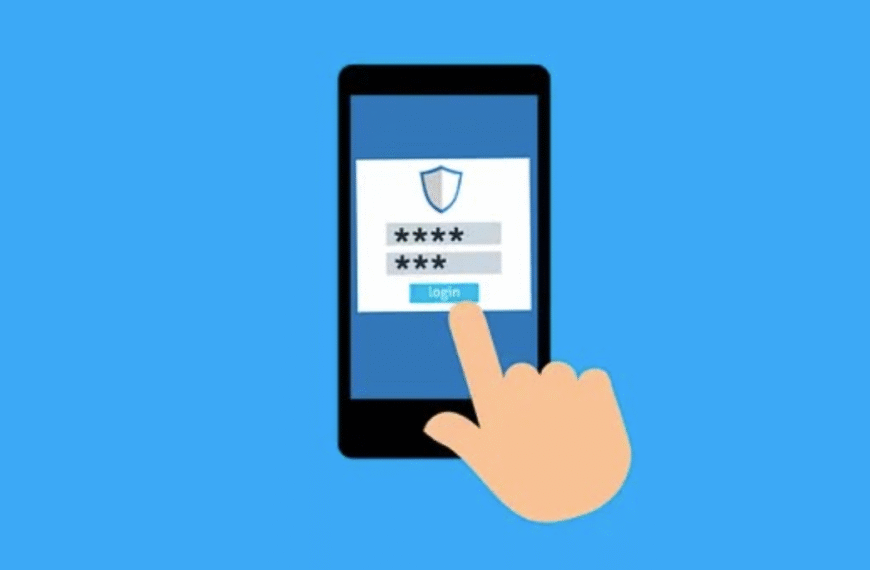
The security settings safeguard accounts but can also lead to lockouts when failing to update the details. If a recovery phone number is invalid or forgotten, an old email address, missing authenticator app or unused recovery codes, the simple login becomes a big issue.
Two factor authentication works only if the second factor is available. Access may become difficult if a phone is lost, replaced or reset without the account recovery options being updated. The same goes for codes which are only stored in the device, which is not there anymore.
The second layer is connected devices. Information on active sessions may be lost if a trusted device is removed. You may need to reconnect all the apps that are connected to a password change. Removing third-party access can prevent calendars, storage applications or browser extensions from functioning.
The security settings should be set at a different speed from normal settings. Before updating the device, travelling, changing accounts or major app updates, they should be checked.
Backups Must Be Checked Before Trouble Starts
A backup setting might look like a good option, but it’s only as useful as the data being backed up. People think all their data (files, photos, messages or app data) is secure because they have backup enabled. Later, they realize that it is not the whole device that was included.
Backups will differ from service to service, device to device. Some will save photos and not app data. Some store app information but need the same account to restore it.
It’s helpful to have a good backup habit: knowing what’s backed up, where, how often, and how to restore it. If you have a backup that has never been tested, then it is just a hope.
Simple checks can prevent larger problems
- Confirm which account controls the backup.
- Review what data is included.
- Check the latest backup date.
- Keep recovery details updated.
- Test access from another trusted device.
- Change one setting at a time during troubleshooting.
These steps reduce panic when a device fails, gets replaced, or loses access.
Better Settings Habits Make Devices Easier to Manage
Devices share more than people think and if they get it wrong, it has bigger consequences in small settings. Being able to change it impacts on accounts, apps, storage, alerts, privacy, backups and security on multiple screens.
The first principle of good troubleshooting is to be patient. Making a number of changes at once is a bit overwhelming, so it’s best to take things gradually. Look at the current checking account. Review sync. Look at permissions. Confirm recovery details. Test backups. Then move one of the settings and observe the result.
It is best to have users familiar with the relationships between connected devices. The only goal is simple control: know what’s changed, where, and how to get back to the control if necessary.
When settings are implemented as part of a system, rather than small buttons in menus, a digital setup feels easier. Proper decisions now can avoid future problems.


 By
By